
Sync Your Drive
If your drive looks stale, recently uploaded files do not appear, or files show red or orange status longer than expected,ArDrivemay need to sync your drive data from the Arweave gateway again.
Some syncing issues are caused by temporary gateway indexing delays and resolve on their own over time. Manual sync givesArDriveanother chance to query the gateway and update the local view of your drive.
Start a manual sync
Open the sync menu inArDriveand choose the sync option that matches what you need.
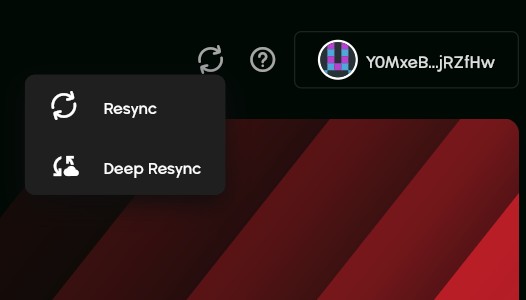
Regular sync
Regular sync is incremental. It starts from the last block heightArDrivesynced for your drive and checks for newer drive, folder, and file updates.
Use regular sync when:
-
Your drive mostly looks correct, but recent files or folders are missing.
-
A file status has not updated after waiting for gateway indexing.
-
You refreshed the app and wantArDriveto check for newer updates.
Deep sync
Deep sync starts from block height 0 and rebuilds the drive index from the beginning.
Use deep sync when:
-
Regular sync does not find the missing files or folders.
-
Your drive looks incomplete or significantly out of date.
-
You changed gateways and wantArDriveto rebuild its view of your drive.
-
Support asks you to run a deep sync while troubleshooting.
Deep sync can take longer than regular sync, especially for large drives, because it checks your drive history from the beginning.
When sync may not fix it
If the gateway has not indexed the file, folder, or upload transaction yet, sync may still not find it right away. Wait a few minutes to a few hours and try again.
If you continue seeing gateway, GraphQL, 502, 503, 504, or bad gateway errors, see Bad Gateway And Network Errors.
Advanced users can also try changing the data gateway and GraphQL gateway. See Change Gateway URL For ArDrive.